Panopto Video Platform Guide for Clinical Practice
Why should student teachers film themselves teaching?
- Although there are many reasons for why student teachers should film themselves teaching, click HERE for a brief presentation on three common reasons for why video is powerful for teacher preparation and development.
- Click HERE for tips and strategies to improve teaching with video.
- Click HERE to access Jim Knight’s Focus on Teaching: Using Video for High-Impact Instruction
What is Panopto?
Panopto is an online video platform to easily create, host, search, share, and stream videos.
Why is Panopto beneficial to clinical practice?
- Students and Coaches have access to it using their Fresno State credentials.
- Accepts any type of video file
- Accepts any length of video
- You can access the platform from anywhere you have internet access.
- Panopto works on any device and is mobile ready through their app.
- Learning to use Panopto will help our students with the video recording required for the SVP and RICA if they chose the video exam.
- Panopto is funded by the University and therefore is a no-cost opportunity for our students and program. As such, the University’s Instructional Designers in the Center for Faculty Excellence serve as the user support team.
- It transcribes the video for you and gives you scripted notes.
- Using the notes function, you can add comments/feedback to a specific portion of a video that is time stamped (i.e., video annotation).
I need help with Panopto? Who can provide me with support?
- SUPPORT THROUGH THE ACADEMIC TECHNOLOGY RESOURCE CENTER (ATRC)
- Monday - Friday, 8:00 a.m. - 5:00 p.m.
- https://fresnostate.zoom.us/j/86566037616
- ATRC Staff Members will likely think that you should go through Canvas to access Panopto. Please kindly remind them that we are not currently using Canvas for our student teaching courses (e.g., EHD 178/170/110D/155A/155B/171/172/175/176/160F). Let them know that you are logging in through the Panopto website using your university credentials instead.
- SCHEDULE AN APPOINTMENT WITH AN INSTRUCTIONAL DESIGNER USING AN ID
- Faculty, schedule an appointment with an Instructional Designer for a longer discussion about pedagogy or your Canvas course by completing this form.
- PANOPTO SUPPORT
How can I access Panopto?
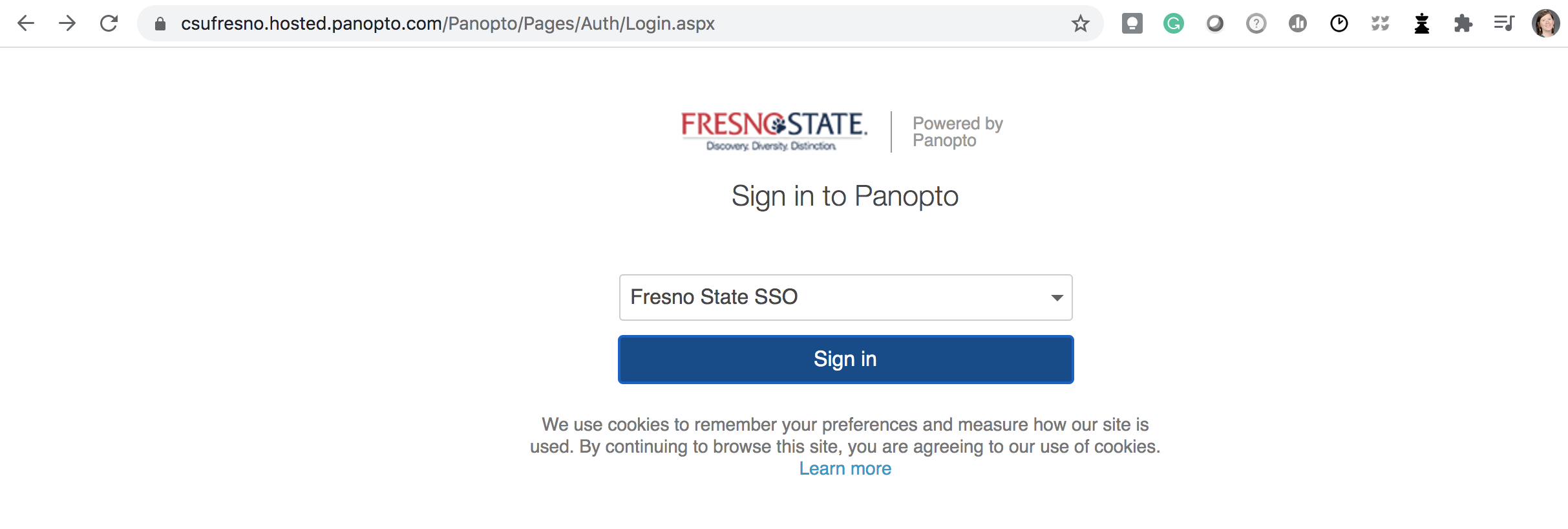
- On any web browser go to: https://csufresno.hosted.Panopto.com/Panopto/Pages/Auth/Login.aspx
- You can also search for “Panopto Fresno State” in a search engine
- Make sure the drop down option says: Fresno State SSO and click Sign in
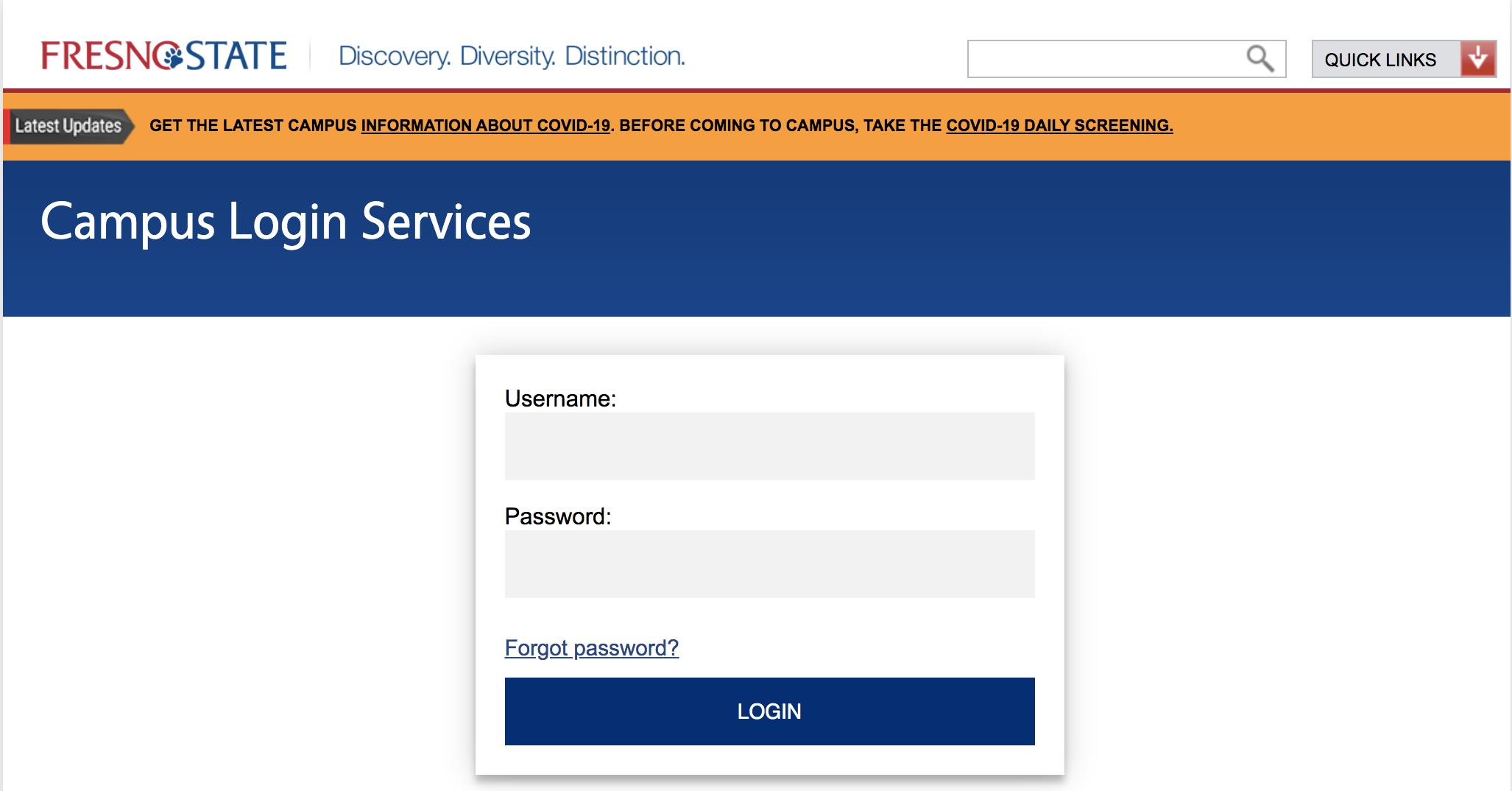
● Use your Fresno State Credentials to Login (the first part of your email address and your Fresno State password as you would for MyFresnoState)
Getting Started
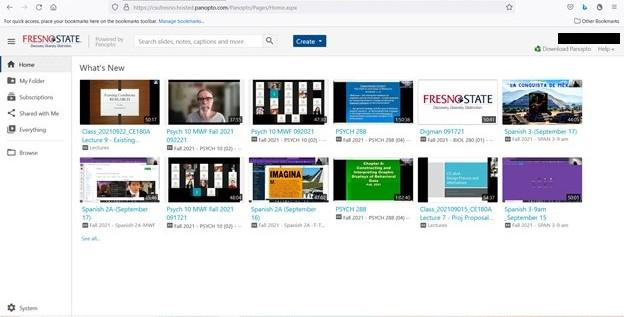
- You will be taken to the Panopto Home Screen (do not worry if the login takes a few
seconds)
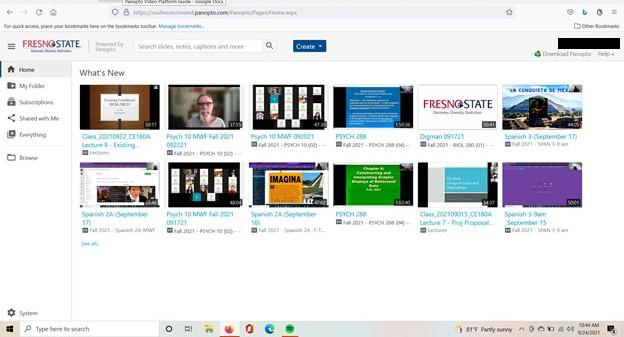
- You can either upload videos or create onewithin the Panopto platform. You can create
content using the create button at the top of your Home Screen. If you wish to record
within the Panopto platform/app please watch this video on how to do so using both Windows and Mac platforms. You can see how to edit a video
within Panopto in this video.
Upload Video
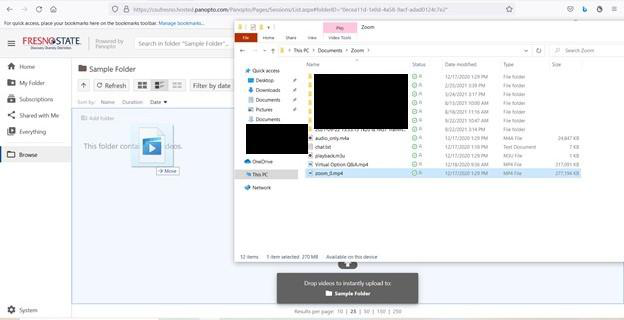
- If you would prefer to utilise Zoom, or another method of recording, you may do so and upload the videos to a specific file within your Panopto. You can see a video on how to upload videos here.
- Select the “My Files” tab from the left hand menu options, then click the grayed out “Add File” button with in the tab, name the file and select enter.
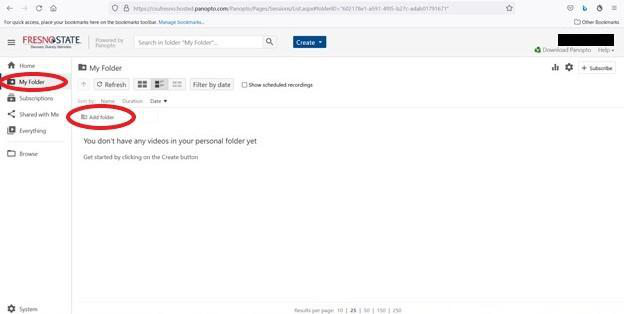
- Then you should open your files and drag and drop the file into the folder you created.
Edit Video
- Whether you have created your video using the Panopto platform or uploaded it from your computer files, you can edit your video within Panopto. You can see the how-to video on editing your videos here.
- It is recommended that you edit your video to a 20 - 30-minute synchronous video for your coach to watch for your observation. Perhaps just your lesson opening, or the learning outcome segment of your lesson plan depending on what you, or your coach, want to work on for this observation.
Securely Share Video
- Once your video has been created or uploaded, and then edited to your satisfaction. You will need to share it with your coach. For instructions on how to share a video, refer to this video.
- We recommend you keep your sharing settings limited to “Specific People” in order to protect the privacy of your students and mentor teacher. You can simply type in your university coach’s email name in the “Invite People” text box to share your video with your coach, and no one else. You may need to set the parameters for your video to stop inheriting the settings of the “Parent Folder”, in the example below, from the the “My Folders” parent folder. By stopping the parameters from being inherited, you will NOT change access, but merely allow Panopto to share your entire folder with your university coach.
How can I Create An Assignment Folder?
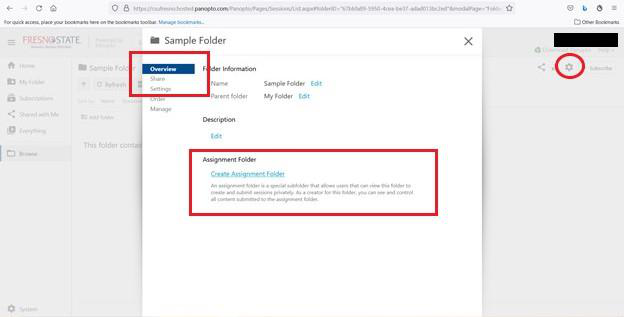
- An assignment folder is a special subfolder that allows users that can view this folder to create and submit sessions privately. As a creator for this folder, you can see and control all content submitted to the assignment folder.
- To create an assignment folder, go to “My Folders”, then select one of the folders
you have created.
How can I access the video transcription using the captions function?
- Videos in Panopto are automatically captioned. If you own the video or have editing access, you can also edit the captions (see how through this video).
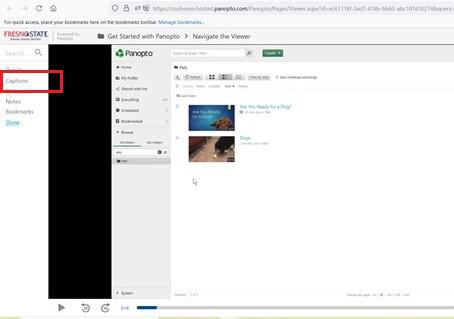
- You can access the captions through the menu on the left-hand side of the screen by clicking on the “Captions” button. This will open the captions transcript.
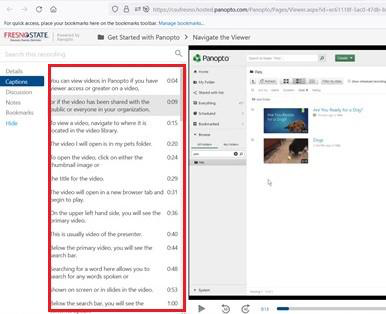
How can I download a transcript of the captions to use as scripted notes?
- Captions can be downloaded from a Panopto video, if you have “Creator” or higher access. If the students created the video, they will need to give their coach this access.
- First, go to the folder, select the video you want to download captions for, then
select the “Settings” button.
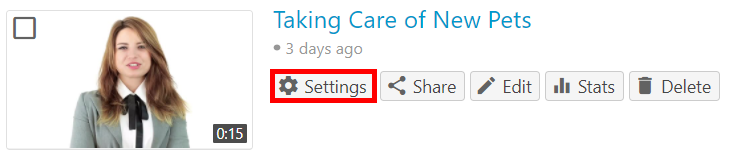
- From there, select “Captions” as above.
- Then select the arrow next to the preferred language of captions you wish to download.
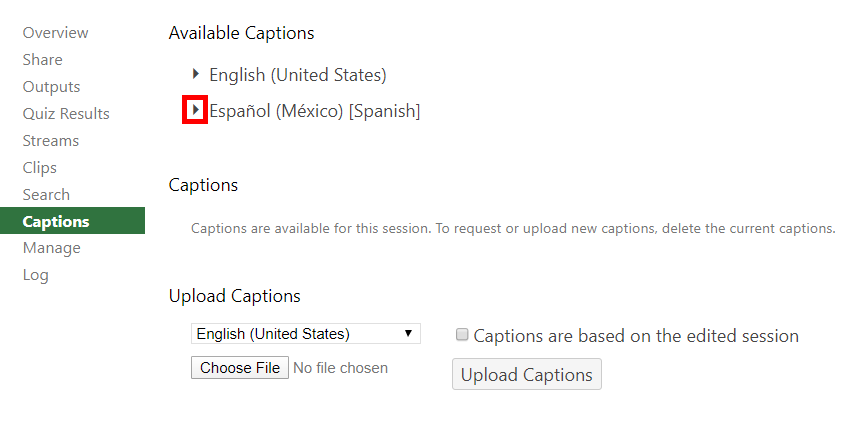
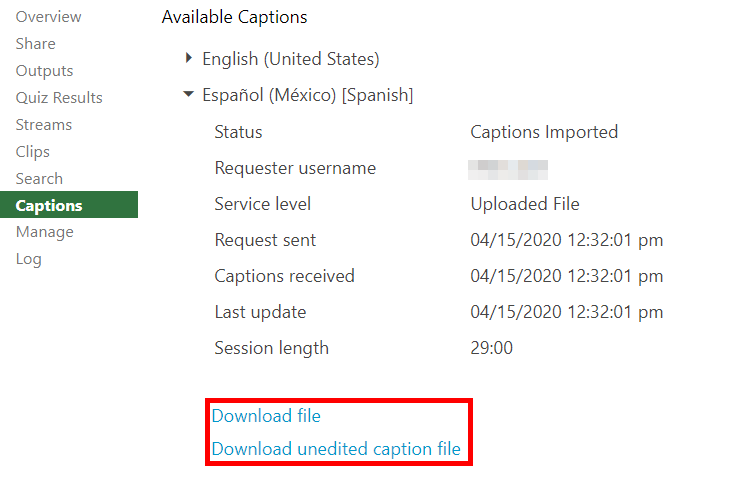
- You will have two options, “Download file” which will download the edited version
of the captions (i.e., any sections of video or captions that have been edited out
will not be included); or “Download unedited caption file” which will include captions
for the complete video.
- Then you can select what type of file you would like the captions to be downloaded in.
- You can see more on the Panopto Support site.
How can I annotate video using the notes function to create time stamped feedback?
- University coaches can provide time-stamped feedback to your lesson videos using the “Discussion” option on the left hand menu.
- Coaches can pause the video at the point where they want the timestamp to be, then they can type their notes into the Discussion box.
- Students can reply to the notes using the “Reply” option next to the timestamp.
- Be aware that everyone who has access to the video can see the Discussion, but owners
and those with access are not automatically informed that a discussion has been created
or added to. Make sure you email your student when your time-stamped notes are added,
or your coach when you add a reply.
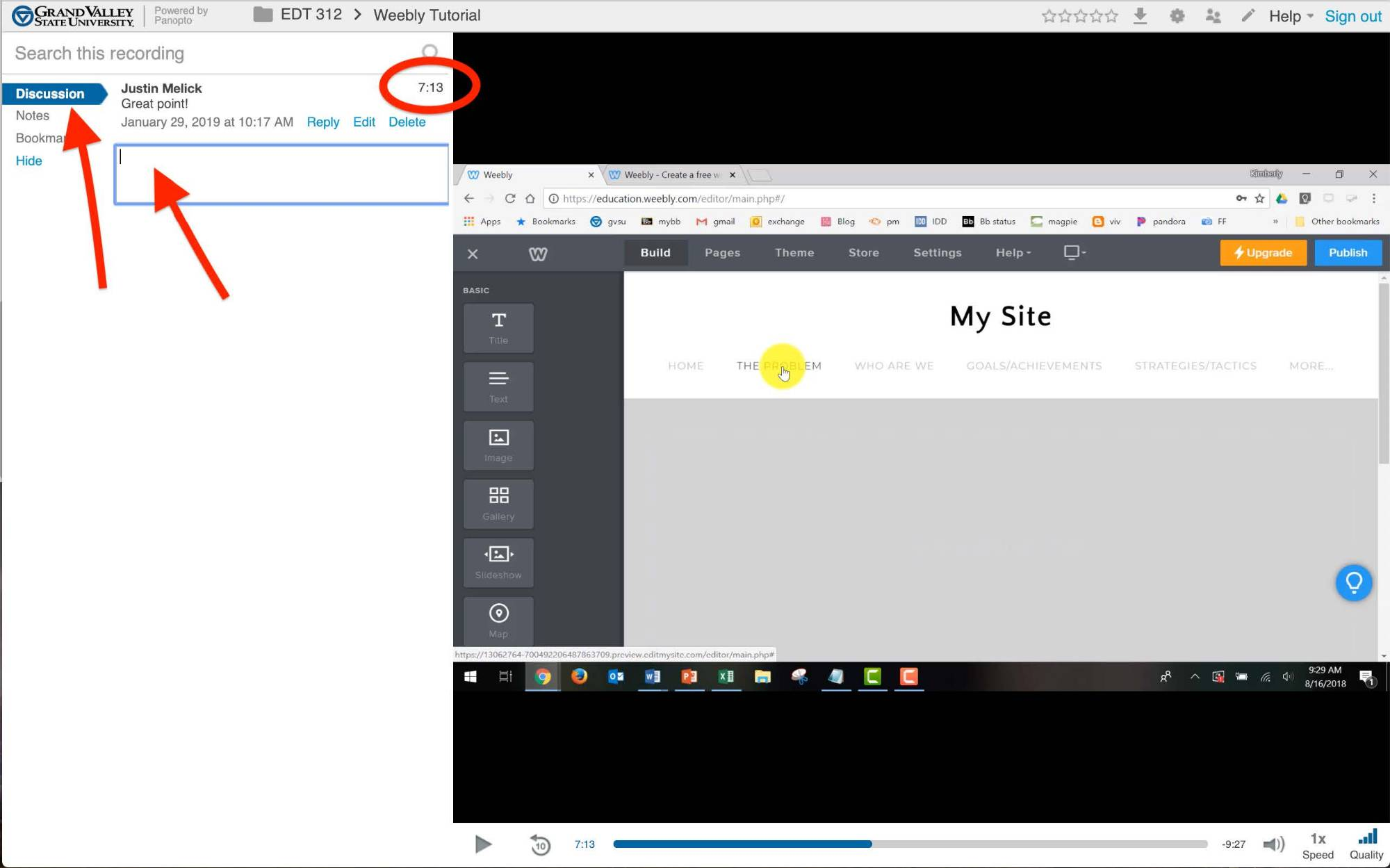
Image courtesy of Grand Valley State University.
Resources
Panopto Community Support Site
This PDF is provided as a print-only reference document and may not be fully accessible to users of assistive technology. For more information, please visit Title II Rule on Digital Accessibility page.